从源代码构建
注意
Setup.bat(询问是否覆盖时选择N)→ GenerateProjectFiles.bat → 在“Development Editor”中构建 “UE4”
本页介绍了在 Windows 上从源代码构建引擎。首先安装工具链——几乎所有针对Vite报告的构建失败都被证明是工具链问题,而不是代码问题。
如果您以前从未从源代码构建过虚幻引擎,请参阅 Epic 的 Visual Studio 4.27 设置指南 仍然是最好的背景读物。
使用 ViteSetup 进行引导式构建
仓库根目录包含 ViteSetup.bat,这是一个辅助工具,它会按顺序运行整个流程:环境检查、工具链强制执行、依赖项设置(包括平台选择)、项目文件生成、源代码或二进制构建、引擎注册、桌面快捷方式以及可选的精简。
ViteSetup.bat
高级菜单允许您单独运行任何步骤:
ViteSetup.bat menu
对于首次构建,建议使用助手,因为它可以在您花费二十分钟编译之前发现缺失的先决条件。请参阅 ViteSetup 助手,了解其所有屏幕和选项的完整说明。
注意: 助手会强制执行其工具链要求,没有任何例外。如果拒绝继续,它会准确地打印出缺少哪个组件。
手动构建
如果您更喜欢自行完成步骤,以下是助手正在执行的操作。
1. 下载依赖项
Setup.bat
此分支已修复 GitDeps,因此无需手动编辑。当脚本询问是否覆盖本地更改时,请选择否(N)。
Setup.bat 接受 -exclude= 参数,用于跳过不需要的平台和内容,从而大幅减少下载大小和磁盘占用。仅支持 Win64 的安装程序大致如下所示:
Setup.bat -exclude=Android -exclude=IOS -exclude=TVOS -exclude=Mac -exclude=MacOSX ^
          -exclude=Linux -exclude=Linux64 -exclude=HTML5 -exclude=WinRT ^
          -exclude=PS4 -exclude=XboxOne -exclude=Switch -exclude=Dingo ^
          -exclude=Samples -exclude=Templates -exclude=FeaturePacks -exclude=Engine/Documentation
警告: 不要排除 Win32 文件夹。Win64 安装版本依赖于位于 Win32 目录下的第三方工具,例如 ARM\Win32\astcenc.exe。
ViteSetup.bat 将这些工具以命名预设的形式呈现——推荐 Win64、Win64 超精简版、Win64 + 模板/功能包、Win64 + Android、Win64 + Linux 和完整安装——并通过其 显示安装配置文件(Show setup profiles) 菜单项打印出每个预设对应的 Setup.bat 命令行。
2. 生成项目文件
GenerateProjectFiles.bat
这将在存储库根目录中生成 UE4.sln 文件。
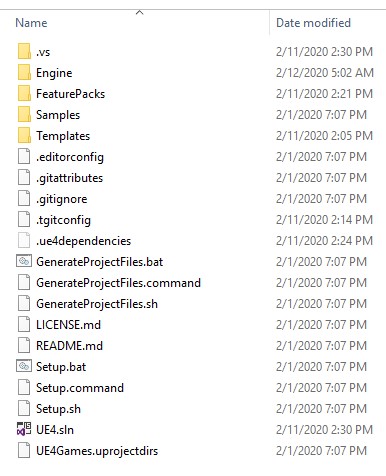
项目文件生成后,资源管理器中的仓库根目录显示为 UE4.sln。如果该文件缺失,则表示生成失败——请阅读其输出,而不是打开 Visual Studio。
3. 构建
打开 UE4.sln 文件,如果尚未设置,请将 UE4 设置为启动项目。构建适用于 Win64 的开发编辑器(Development Editor)配置。
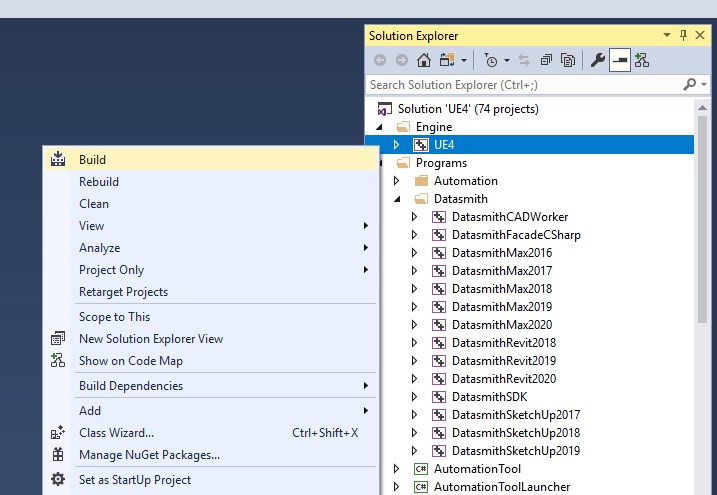
在 Visual Studio 解决方案资源管理器中,选中 UE4 项目并打开“生成”命令。请在Engine下构建 UE4,而不是在解决方案下构建。构建整个解决方案会编译编辑器构建不需要的程序目标。
在命令行中,等效命令是:
Engine\Build\BatchFiles\Build.bat UE4Editor Win64 Development -WaitMutex
Engine\Build\BatchFiles\Build.bat ShaderCompileWorker Win64 Development -WaitMutex
Engine\Build\BatchFiles\Build.bat UnrealLightmass Win64 Development -WaitMutex
编辑器正常运行需要这三个目标。ViteSetup.bat 会按此顺序构建它们。
4. 注册引擎
为了让 .uproject 文件能够找到此版本,请使用当前用户的虚幻引擎构建密钥注册此版本:
reg add "HKCU\Software\Epic Games\Unreal Engine\Builds" /v UE_ViteFork /t REG_SZ /d "<engine root>" /f
然后,在项目的 .uproject 文件中设置"EngineAssociation": "UE_ViteFork"。助手会自动执行此步骤,并清理指向同一文件夹的过时 GUID 键值条目。
构建时间
编译时间主要取决于核心数量。作为参考,在 Ryzen 9 9950X3D 上完整构建代码库大约需要 15 分钟;移除捆绑的 Vite 插件后,时间缩短至约 12 分钟,其中 Houdini 插件占用了大部分时间。如果您更注重迭代速度而非插件覆盖率,请参阅精简指南。
生成可安装版本
一旦源码构建(source build)成功,您就可以将其转换为可分发给团队其他成员的可安装版本。运行仓库根目录下的 RunUAT.bat(虚幻引擎自动化工具,Unreal Automation Tool),执行 BuildGraph Make Installed Build Win64 目标,并将结果输出到 LocalBuilds\Engine\Windows\ 目录:
RunUAT.bat
查看已安装的构建以获取完整的选项集,以及查看打包和分发以获取压缩脚本。